Release notes
New ways to browse files, secure your guidelines, and provide access to all your teams.
07 November, 2026
Skylar Aieta
Product Designer
Today we’re announcing what is undoubtedly our largest update of the year. As brands grow to serve broader teams, the need for precise, easy-to-use features to manage files and access grows as well.
We’re launching an all-new dedicated file browser to help you managing your assets, available to all plans. We’ve rebuilt access management from the ground up alongside new security configurations for Enterprise plans. As if that weren’t enough, there are even more quietly impactful updates coming with this release as well.
We hope you enjoy using these new features as much as we’ve enjoyed building them. There’s a lot to cover, so lets dive in.
File management
An all-new file browser
We’re thrilled to launch a complete overhaul to files with new views including a large visual grid display, and a feature-rich file inspector that makes reviewing, managing, and modifying your files much easier. Not only is this new browsing experience easily accessible from the main editor—where files have always been managed—but it can be accessed from the dashboard view as well.
For more information on files, see our guide.
Tagging & Filtering
Our previous label system has been replaced with a new tag system that supports multiple tags per file. We’ve also added new controls for filtering and grouping files, including a new ‘Used on’ filter that easily shows which pages assets are used on, which are assigned as downloads, or which assets have not been used at all.
For more information on files, see our guide.
Multi-select & Renaming
Before today, there have been a couple file management workflows missing that we’ve all come to expect from our tools: multi-select and file renaming. Now, both come like a breath of fresh air to the new file browsing interface and the same design workflows you’re familiar with in Standards. Hopefully this makes your experience that much better.
For more information on files, see our guide.
Access & Security
New ways to manage access
All accounts with access to Standards—including workspace members and guidelines viewers—can now be grouped and managed all in one place. Rather than inviting one person at a time, you can bulk import a database of emails to quickly add them all at once. The new Access screen also includes filters and activity logs, making it easy to see who can do what across a large workspace.
For more information on Access, see our guide.
SCIM provisioning
For teams that manage people through an identity provider, Standards now supports SCIM provisioning with Okta, Microsoft Entra ID or any other provider who supports SCIM. Users and groups sync automatically, so access stays current as people join, move teams, or leave. Members and groups managed this way are labeled with the provider’s name and can’t be edited in Standards, keeping your identity provider as the single source of truth.
For more information on SCIM, see our guide.
Advanced per-page security permissions
Until now, each guideline could only be secured with a single security method. Now, you’ll set a default security for the guideline, then customize exceptions for specific pages that need a different method. For example, pages of a guideline could each use a unique password, or through SSO each have a specific access group assigned. Additionally, you can now design a unique sign-in page for each security method within a guideline.
For more information on page-level security, see our guide.
SOC 2 Certified
These updates are bolstered by our official SOC 2 Type II accreditation. Standards completed its SOC 2 Type II audit in October 2026. Behind it is a documented security program that we test continuously, not just once a year.
For more information on our company security measures, visit our Security page.

More enhancements
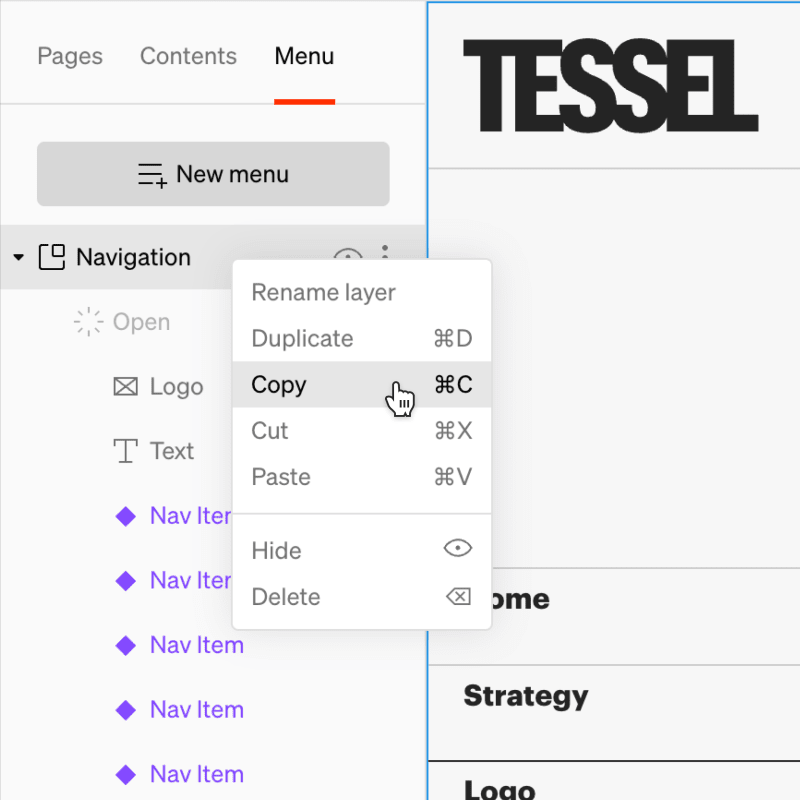
Cut, copy, and paste
We’ve radically simplified and enhanced the ability to copy design elements between sections, pages, or guideline in Standards. Now, anything can be quickly copied, cut, and pasted anywhere, making the process of extending your design work even easier.
New behavior: Enlarge media
One simple feature snuck into this release that quickly became one of our favorites—an all-new click behavior for Media elements—Enlarge. Allow viewers of your guidelines to zoom into any image, or even create a dynamic carousel from a collection of media elements throughout the page.
Audio visualizer
We’ve added a more expressive way to visualize audio in your guidelines as a waveform. This can be applied to either audio or video controls in place of a standard progress bar design.

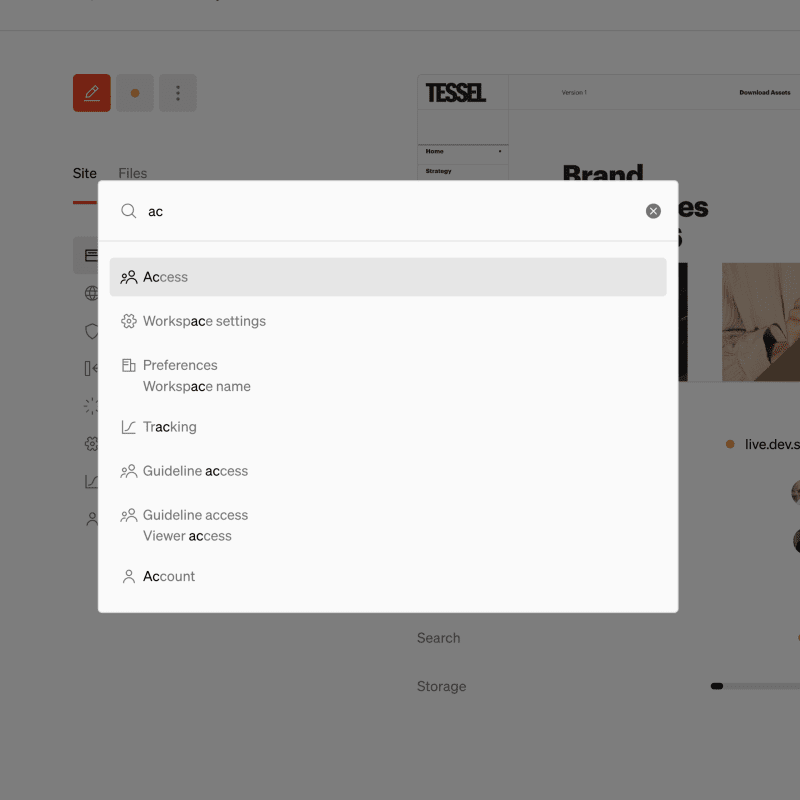
Dashboard search
Last but not least, we’ve added search to the dashboard as a convenient way to navigate the many screens within your workspace. Try searching for guidelines, people, or settings with a simple cmd + K hotkey.
More enhancements
-
File downloads now use the correct file name, regardless of file size
-
Guidelines now warn you when changes aren’t being saved
-
Improved multiplayer stability
-
Dependency updates to address security vulnerabilities
-
Minor polish to date pickers, radio buttons, and dropdowns
-
Copying a page to another guideline now drops unused styles and components, and keeps styles only used in state or breakpoint overrides
-
The states editor now shows a reset button when a nested element is changed, and one click resets the whole state
-
Opening a guideline that doesn’t exist now shows Not Found instead of returning you to the guideline list
-
Fixed a bug where signing in as a different user would return you to the first user’s workspace
-
Fixed a bug where elements could be dragged, inserted, or pasted inside component instances
Get in touch
If you have any feedback, questions about this update, or have ideas for what we should work on next, please let us know by emailing [email protected]